
User Experience
Support keyboard users in everyday business tools
Keyboard support must cover the whole business task, including menus, filters, dialogs, and recovery. Use a task-based acceptance test to find pointer-only controls before they interrupt daily work.
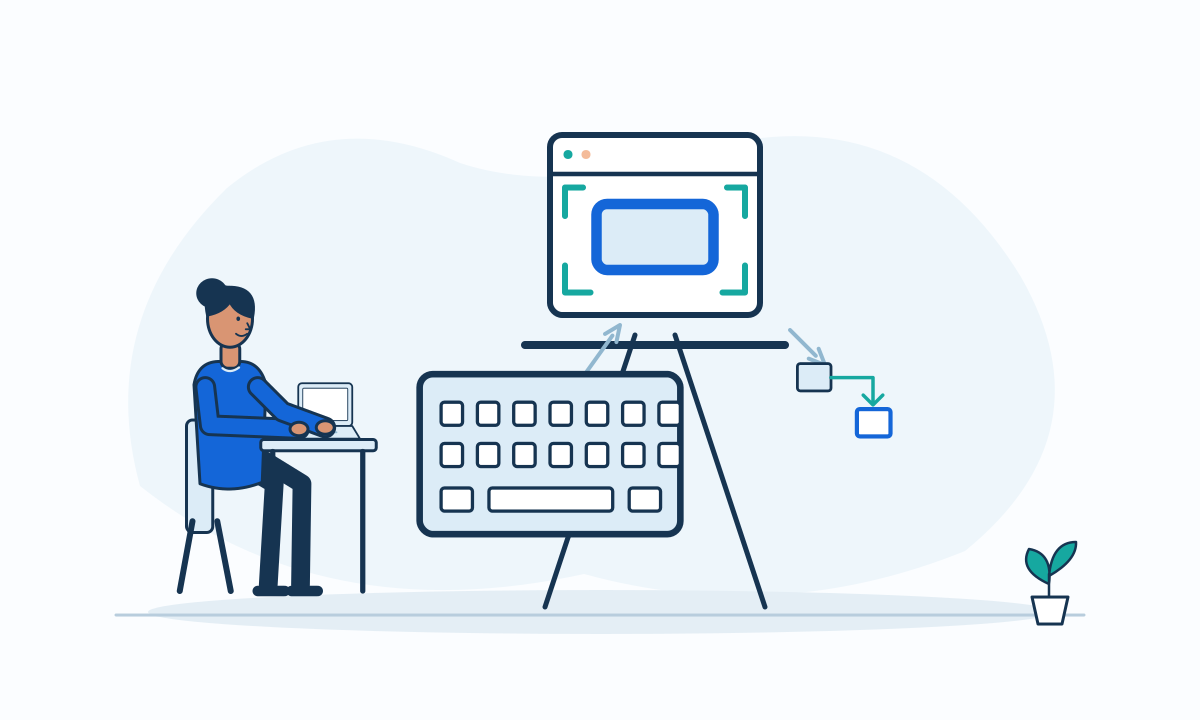
A business application does not support keyboard users merely because its text fields accept typing. The user must also reach actions, change filters, inspect details, and recover from mistakes. Buyers should ask for a complete task demonstration without a mouse rather than a statement that the component library is accessible.
Evaluate the task, not isolated controls
WAI explains that keyboard operation supports people who cannot use a mouse and people who use alternative input devices.[2] Its keyboard criterion covers functionality without specific keystroke timing, except underlying functions that require a movement path.[2] An ordinary approval or record selection should not depend on a precise pointer gesture.
List the steps in a frequent task, including optional branches. Put the pointer aside and follow that list. A reachable search field is not enough if a result menu, attachment action, or final confirmation still requires clicking. Record where the task becomes impossible, not just where navigation feels slow.
Make location and behavior predictable
During review, ask whether users can tell which control currently receives keyboard input. Recommend a clearly visible focus indicator that remains recognizable against each surface. Check whether the navigation sequence follows the meaning of the page rather than the visual convenience of individual components.
Prefer familiar controls where possible. If a custom grid uses arrow keys or selection shortcuts, explain those interactions and test them with intended users. An efficient shortcut should supplement an understandable route, not become the only way to discover a business action.
Hypothetical example: a service allocation queue
In a hypothetical repair office, a coordinator filters unassigned jobs, opens a job, and assigns a technician. The filter works with a keyboard, but the technician picker initially exposes options only on pointer hover. That single control blocks the entire allocation task.
The revised acceptance scenario includes opening the picker, selecting a technician, canceling without changes, and submitting the assignment. It also checks that closing job details returns the user to the same queue position. These are proposed checks, not measured results from a customer implementation.
Set a practical acceptance boundary
Keyboard testing takes time, especially with custom widgets and deeply nested screens. Start with high-frequency and high-consequence tasks, but document untested areas rather than treating a sample as complete coverage. Agree supported browsers and assistive technology combinations before acceptance.
Passing this task checklist does not establish formal accessibility compliance. Use the findings to prioritize fixes and decide whether a broader specialist evaluation is needed.
- Complete filtering, selection, editing, and submission without a pointer.
- Check visible focus across normal, disabled, and error states.
- Verify dialogs can be entered, operated, and dismissed.
- Confirm closing an overlay restores a useful location.
- Test a failed action and its recovery using the keyboard.